Start with a recovery scenario
If you only need to open an application on a running computer, investigate your existing remote-desktop options first. If you need access before the operating system starts or when ordinary remote software is unavailable, a compatible hardware KVM may address a different problem. Do not buy it until that problem is clear.
This is a documentation-based checklist. We have not tested a KVM, BIOS access, a power recovery, or a remote network path. Exact behavior depends on the computer, video connection, KVM model, firmware, and access method.
| Failure or task | What must remain available | Question before buying |
|---|---|---|
| Use an app on a running computer | Computer and remote access service | Can existing software meet the need? |
| See a boot screen | Compatible video/input path and powered KVM | Does the model document this computer's connections? |
| Restart a frozen computer | Separate supported power-control method | Does the package actually include it? |
| Internet outage at the remote site | An independent working access path | How will any remote tool reach the site? |
| Power outage | Power for all necessary devices | What returns automatically, and what needs a person? |
Remote visibility is not remote power control
Treat video, keyboard/mouse input, networking, and power control as separate requirements. A KVM product name does not tell you that all four are included for your computer. Confirm the exact cables, adapters, optional power accessory, and motherboard or device compatibility in the model documentation.
A switchable outlet is not the same as a graceful operating-system shutdown. Do not plan a power cut as a routine substitute for a supported shutdown process. Write down the recovery sequence and what data or running work it could interrupt.
Choose an access path deliberately
GL.iNet documents a Tailscale path for supported KVMs that joins the KVM to a virtual network for remote access without the GLKVM cloud/app route. That documented option does not establish your account eligibility, successful connectivity, or every model's behavior.
Confirm who may access the device, how authentication works, how an account is recovered, and how you revoke a lost device. Follow the product's supported configuration; this checklist is not a request to expose an administration page directly to the public internet.
Test while someone is still beside the computer
- Record the exact computer, firmware, KVM model, cables, and display settings.
- Verify local video and input first. Record boot-screen visibility separately from a working operating-system desktop.
- Try the intended remote path from a genuinely different network with the authorized account.
- Test an ordinary reboot during a safe maintenance window. Check what returns automatically and whether authentication remains available.
- If power control is required, confirm its documented setup and test it only when interrupting the computer is acceptable.
- Keep a local person or recovery route available until the full sequence is understood. Retain instructions outside the remote computer itself.
Count every part of the recovery chain
The official GL.iNet page displayed Comet Pro at $179.99 when checked September 13, 2026. This is a price observation, not a recommendation or a quote for a complete recovery setup. Accessories, remote connectivity, power backup, and any service plan may add cost.
If the goal is a $50 monthly discretionary budget, defer new hardware until the requirement and funding are clear. An existing remote-desktop feature or a trusted on-site helper may cover an infrequent need more economically.
Watch demos / Official walkthroughs
See the hardware in action.
Videos load from YouTube only when you press play. These are provider videos, not our own product tests.
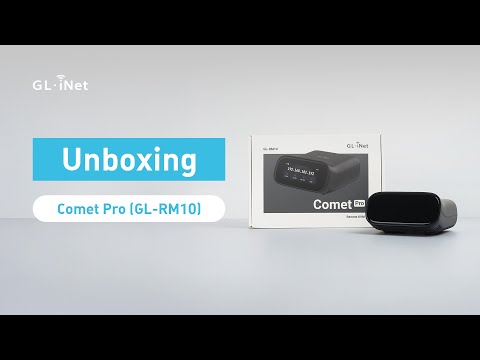
GL.iNet / Official video
Comet Pro (GL-RM10) Remote KVM over Wi-Fi 6 | Unboxing
What to look for: Look for the computer connections and initial setup required for Comet Pro.
Watch on YouTubeYour next step / Review the option

Comet Pro (GL-RM10)
Investigate for compatible hardware access when ordinary remote desktop cannot cover the failure.
$179.99 observed USD base price; tax/shipping/accessories extra
Documentation-based candidate, not tested. Confirm region, stock, complete price, and required components.
Ordinary provider link. No affiliate partnership claimed. Link disclosure
Questions before you decide
Do I need a hardware KVM if remote desktop already works?
Not automatically. If your task only needs applications in a running operating system, your existing remote-desktop setup may suffice. Investigate a KVM when you need access outside that path, such as a compatible boot screen, and verify the exact computer's video and input behavior.
Does buying a remote KVM let me turn any computer back on?
No. Power control is a separate compatibility question and may require a supported accessory or another recovery method. A powered-off router or failed internet connection can also block access. Verify the full recovery path locally before relying on it away from the computer.
Sources & verification
Product details and prices can change. Check the linked provider before buying.
- GL.iNet KVM documentation Accessed 2026-09-13
- GL.iNet KVM remote access via Tailscale Accessed 2026-09-13
- GL.iNet Comet Q console guide: model-specific example Accessed 2026-09-13
- GL.iNet Comet Pro price and specifications Accessed 2026-09-13
Sources link directly to providers. Product buttons may use separately labeled affiliate links. Read our disclosure.